

Teltonika EV-laadstations
Ondersteunde apparaten
| Device Type | Variants | Modbus TCP (Ethernet) | RS485 |
|---|---|---|---|
| TeltoCharge | 7.4kW/11kW/22kW | ✅* | ✅ |
Waarschuwing
Waarschuwing
TCP is alleen beschikbaar voor versie EVC2 of nieuwere generatie EV-laders.
Verbinding
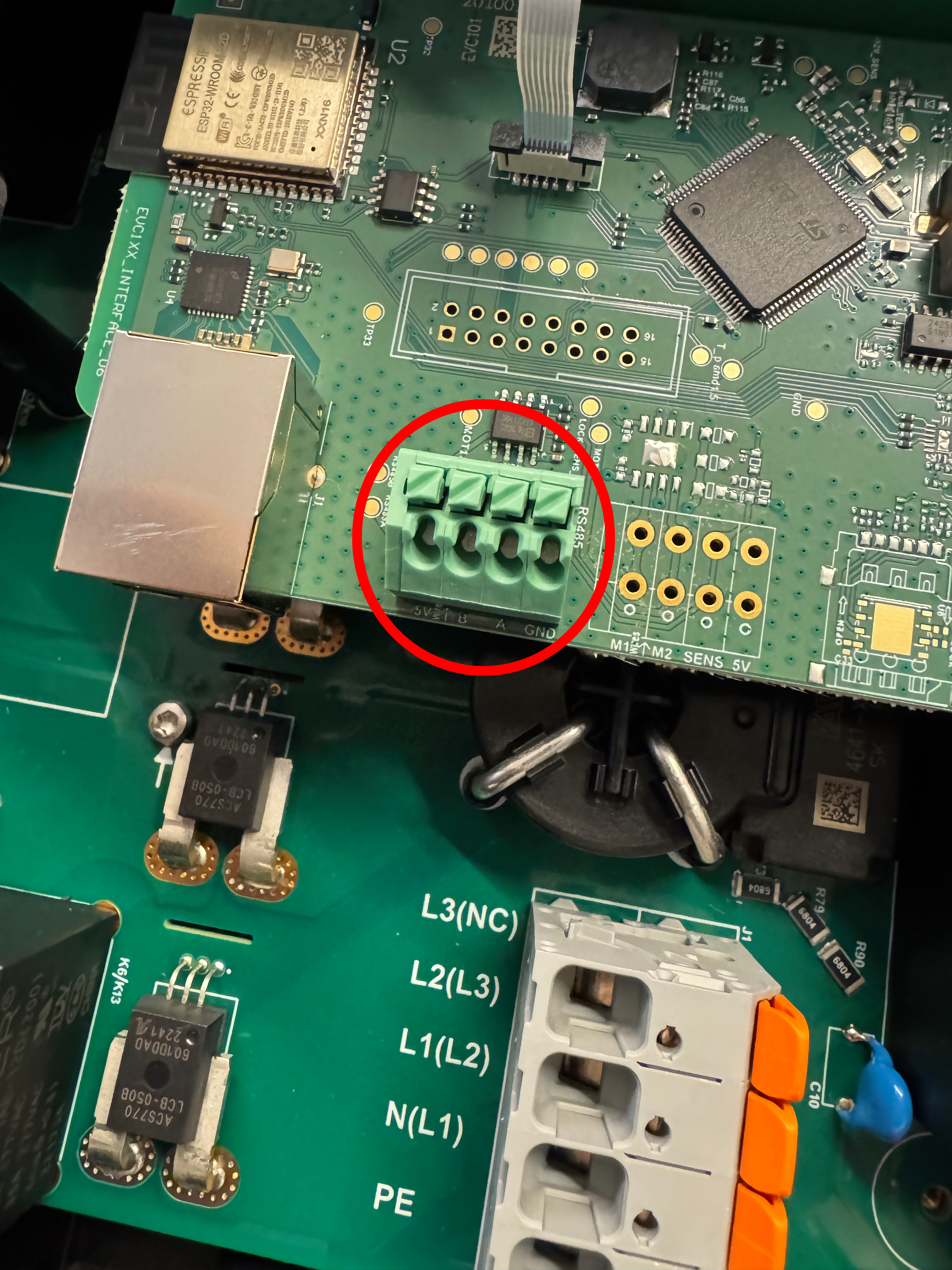
De communicatie tussen de Sofar EMS en de TeltoCharge verloopt via een RS-485 seriële bus of Modbus TCP.
Info
RS485 Wiring
- For correct RS485 wiring: Follow the guidelines for RS485 wiring.
- If the wiring shown in the table below is incorrect, please let us know.
- There is no general consensus in the industry about the usage of A and B for the RS485 polarity, so it may be counterintuitive and opposite of what you might expect for some devices.
| Device | Sofar EMS model OM1 | Sofar EMS model IG8 | RS485-USB converter | RS485-Ethernet converter |
|---|---|---|---|---|
| RS485 A | RS485 A | RS485_POS | RS485 A | TX+ |
| RS485 B | RS485 B | RS485_NEG | RS485 B | TX- |
| GND | RS GND | GND | Not available | G |
Waarschuwing
NOTE: RS485 Device Addresses
- You MUST give each device on the RS485 bus a unique address. Check the manual of the device on how to do this.
- Use lower addresses first (1, 2, ...) because the Sofar EMS will find them faster!
- For each device, it is generally recommended to stick with the factory default baud rate, parity, and stop bits. The Sofar EMS will scan on those first.
Instellingen
Volg onderstaande stappen om Modbus op de TeltoCharge in te schakelen:
- Open de apparaatinstellingen in de Teltonika-app.
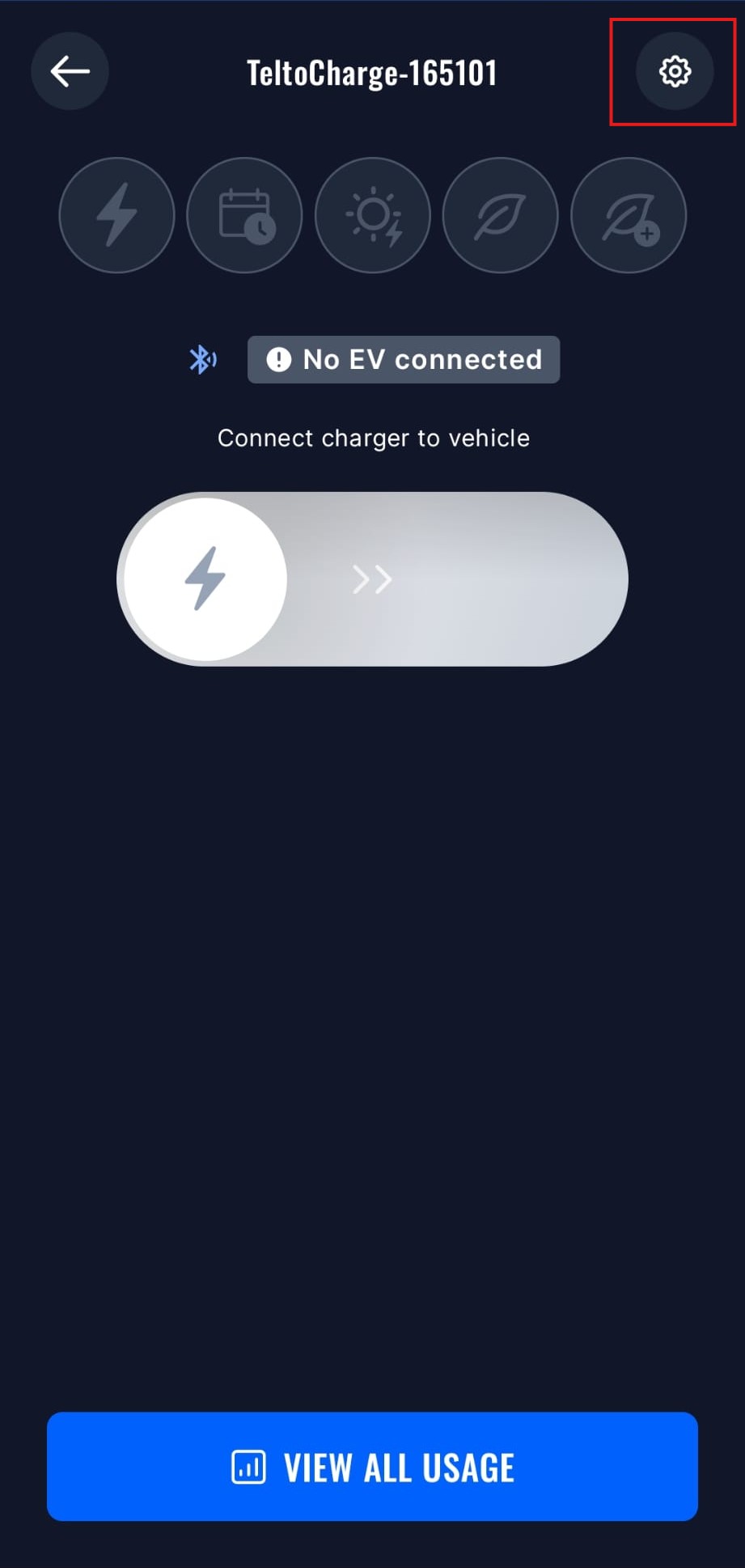
- Open het Installateursmenu, u moet de installateurscode invoeren om toegang te krijgen tot dit menu.
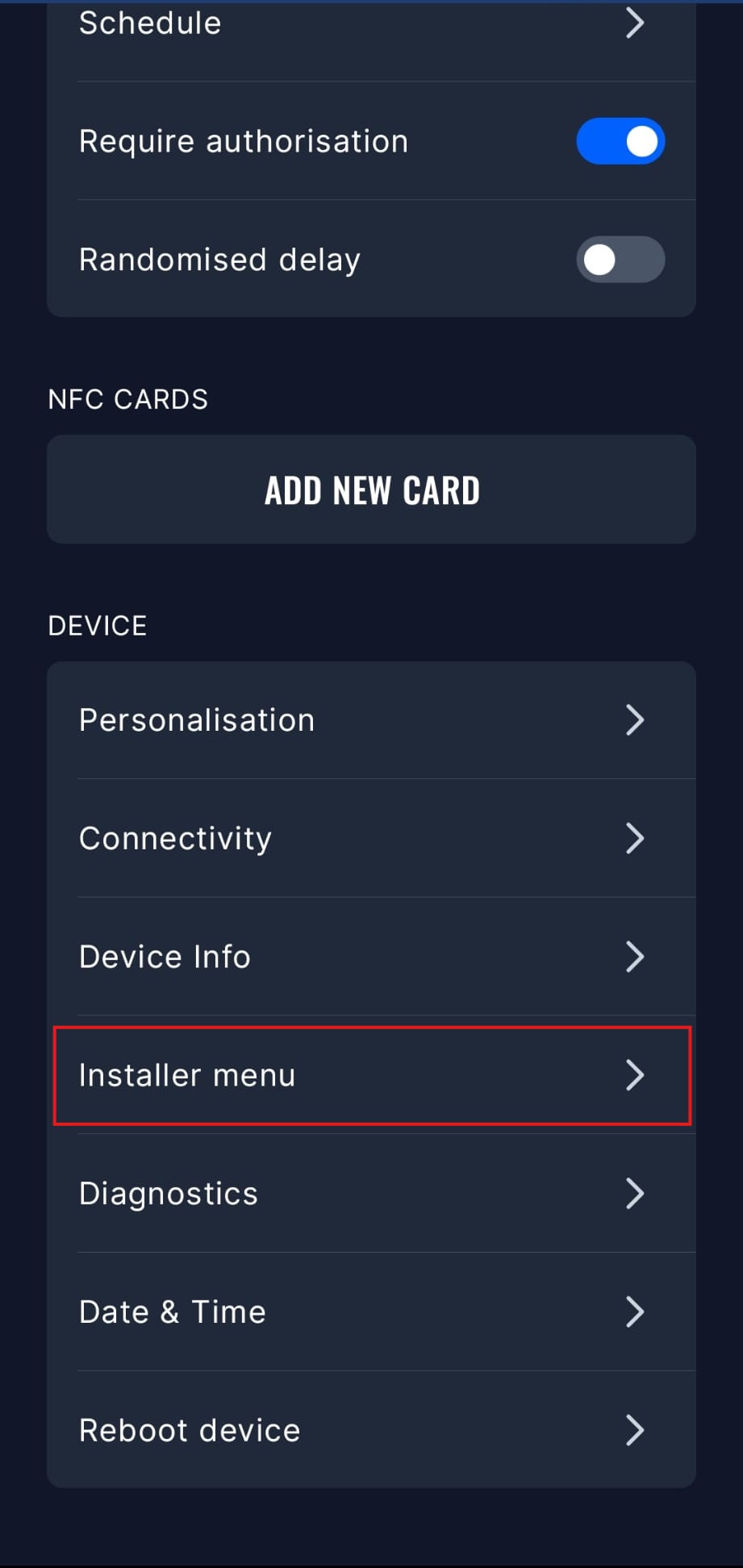
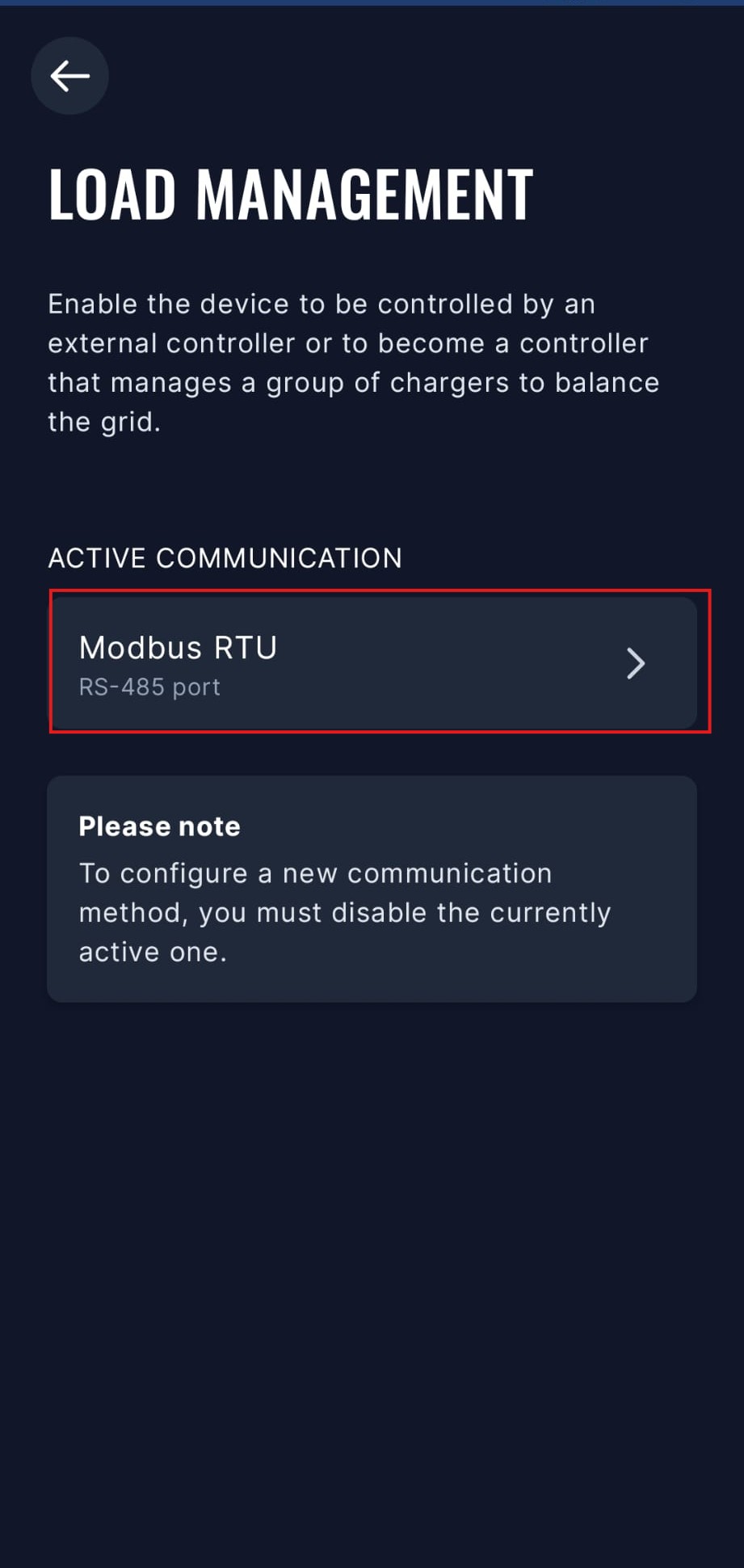
- Open het menu Lastbeheer.
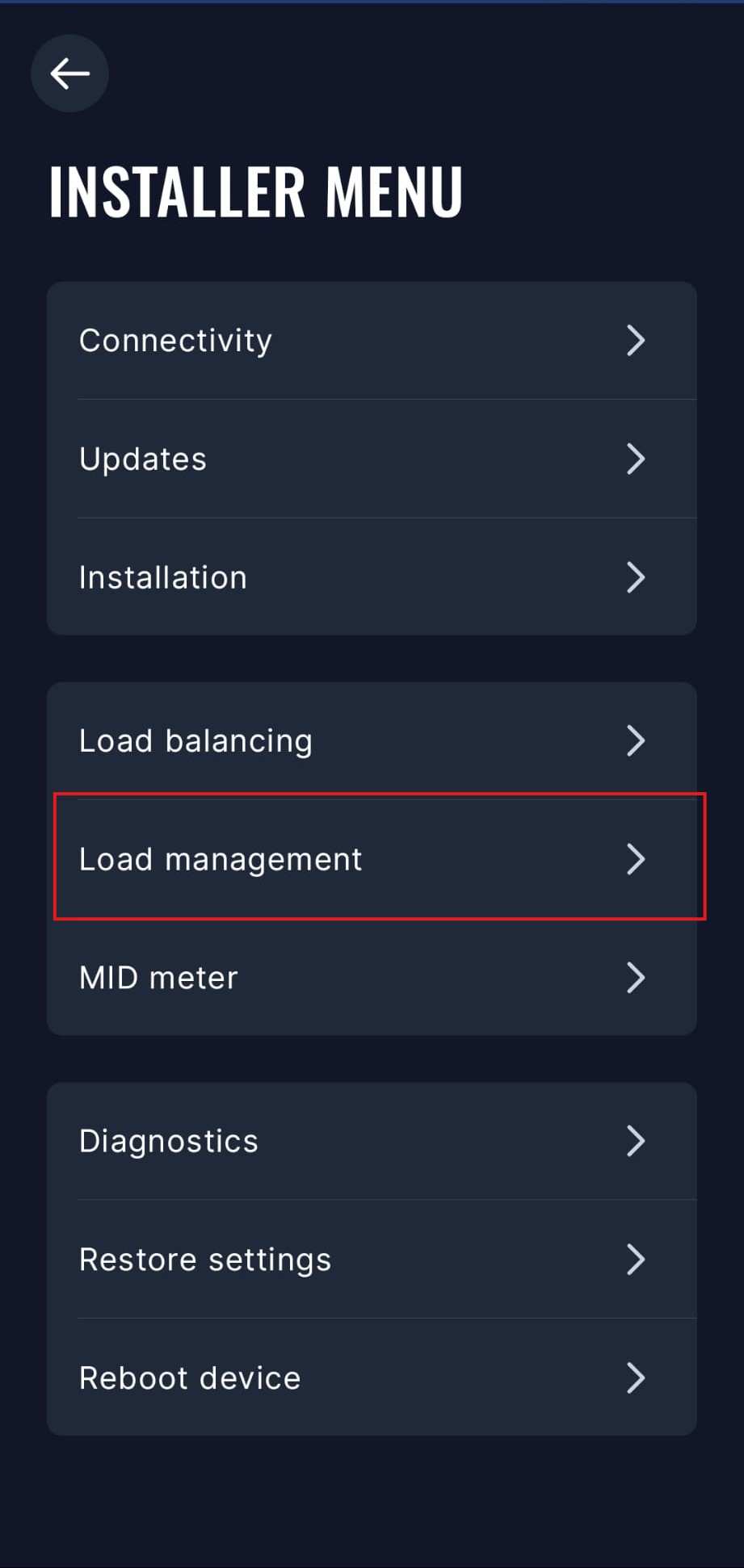
- Selecteer de Modbus RTU-optie. U moet andere communicatieopties uitschakelen om Modbus RTU in te schakelen.
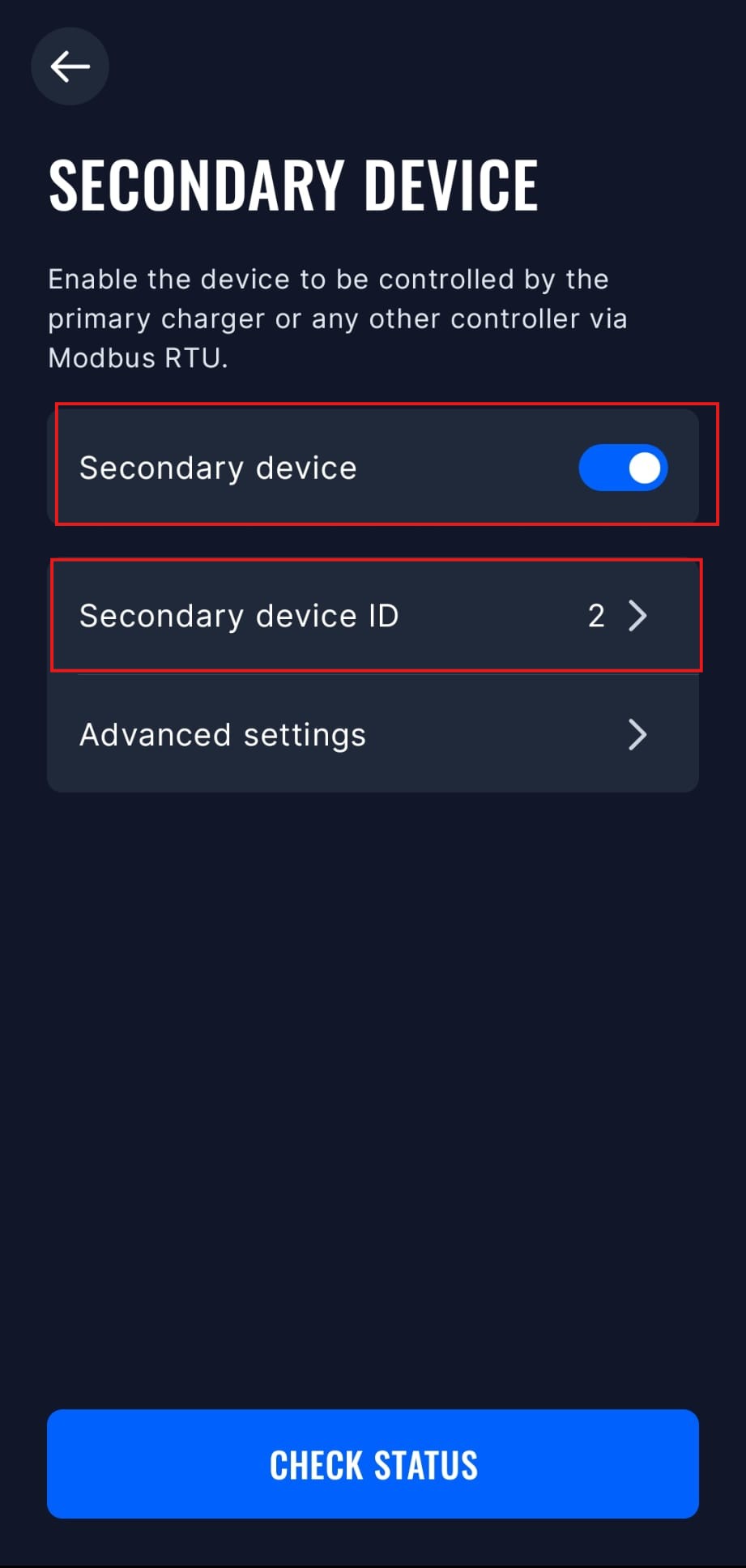
- Selecteer de modus "Secondair apparaat" en schakel deze in. U kunt ook het Modbus-adres en andere geavanceerde instellingen in dit menu instellen, maar de standaardinstellingen zouden prima moeten werken.
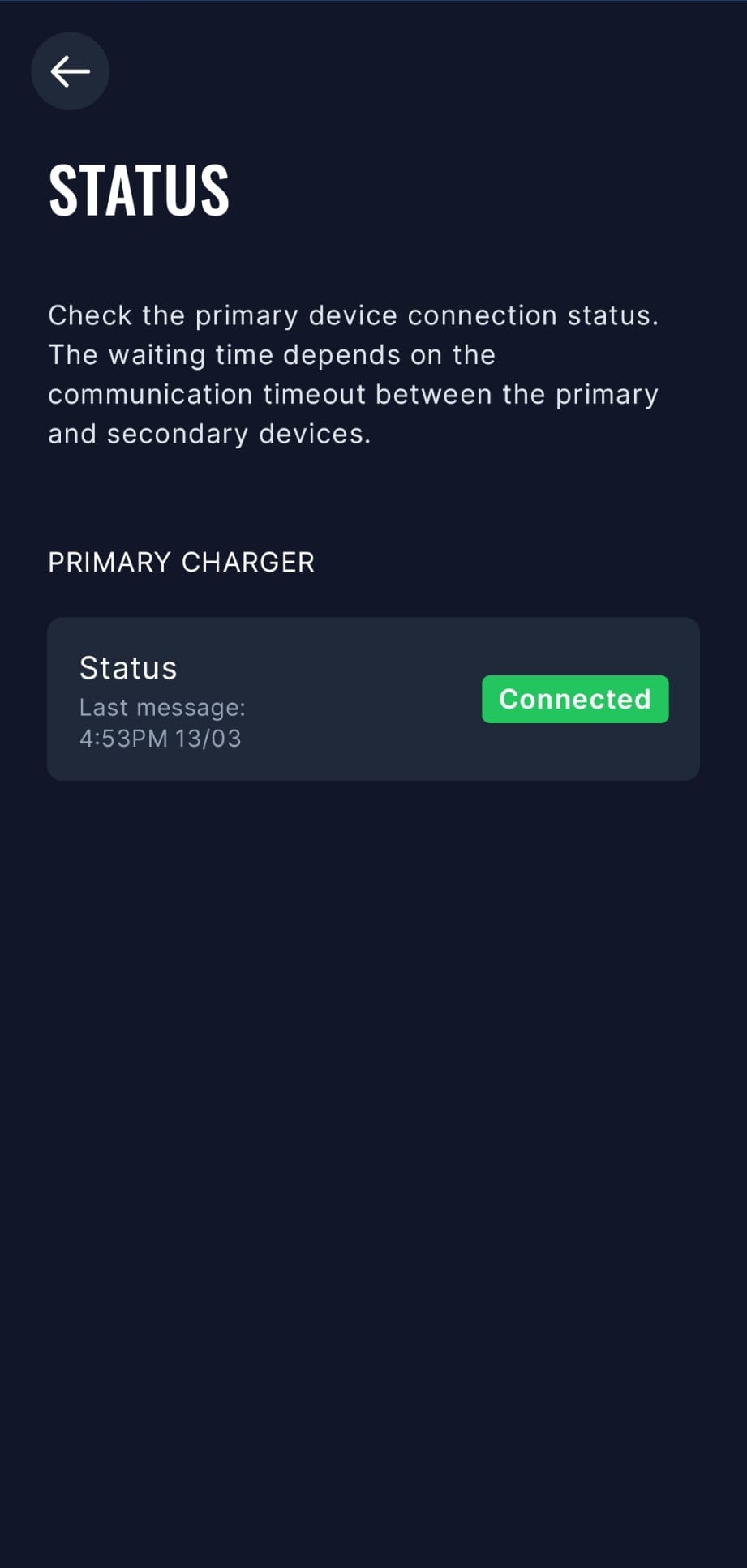
- De Sofar EMS kan nu via Modbus RTU communiceren met de TeltoCharge. U kunt de verbindingsstatus in de app controleren.
Oudere modellen
De TeltoCharge moet modbus ingeschakeld hebben:
- Open de Teltonika-app
- Ga naar "Instellingen" -> "Installateursmenu"
- Schakel "Dynamische lastbalancering" in
- Nadat u dit hebt gedaan, wordt "Dynamisch lastbeheer" zichtbaar
- Scroll naar beneden en schakel "Dynamisch lastbeheer" in
- Klik op "Opslaan"
- De TeltoCharge zal nu opnieuw opstarten en modbus zal ingeschakeld zijn